Get a Free License
BerEditor, CertMan, and CryptokiMan support online issuance of a free, 60-day license. This feature is available in version 1.8.0 and later.
You can request another license after the current one expires, including if you have received a license before. The applications are developed as a side project and are not code-signed, because code-signing certificates involve additional costs. As a result, your operating system may show an unknown-developer or security warning. The author states that the applications are not malware; download them only from the official source and make your own security assessment.
The online licensing process has three steps: submit your email address, retrieve the license key from your email, and apply the key in the application.
1. Request a license by email
Open the Get a free license, enter your email address, and select the application for which you need a license.
The license key is sent to the email address you provide. The author states that the email address is used only for license issuance.
2. Find the license key in your email
Check your inbox for the license email and copy the license key. If it does not arrive, check your spam or junk folder.
3. Apply the license in the application
Open the application's license information screen. Enter the email address used for the request and the license key from the email, then click Get (or the equivalent button in your version).
The licensed features will be available for 60 days. After the license expires, you can submit a new request.
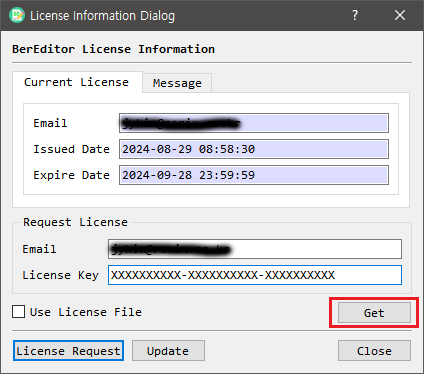
- Email: The email address you used when requesting the license.
- License Key: The key from the license email. Enter it, then click Get.