CryptokiMan Main Window Guide
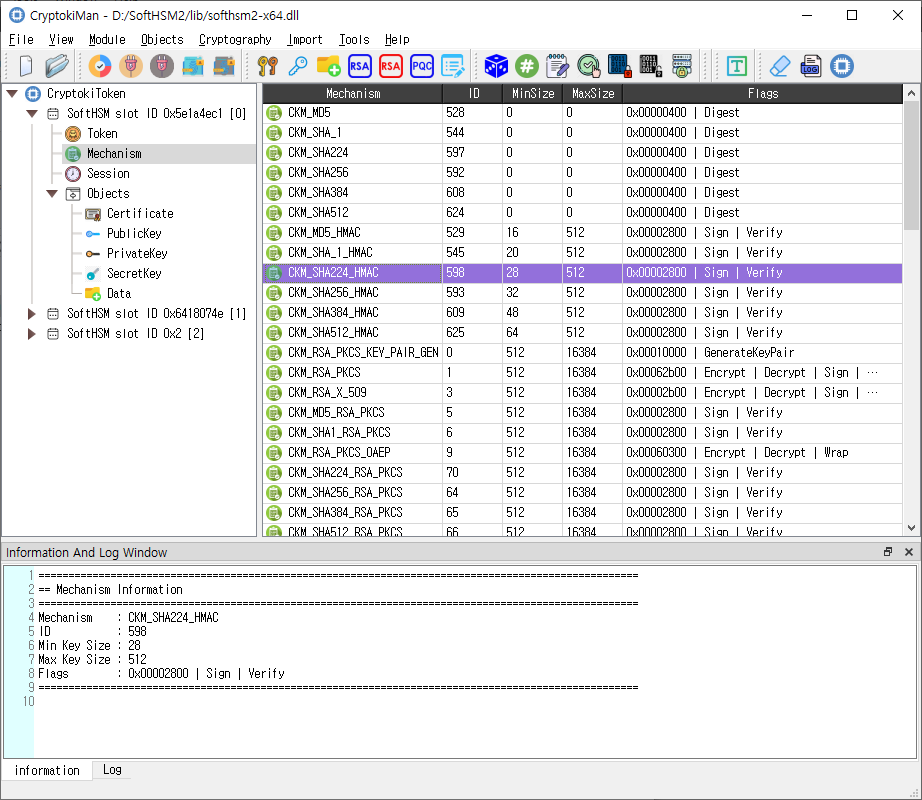
Navigation tree, details table, and information/log panels.
Main areas
- Navigation tree: Browse the loaded Cryptoki library, slots, tokens, mechanisms, sessions, and object categories. Select an item to show related details.
- Details and object table: Displays properties or lists of objects. Select a row for its details; double-click or right-click an object row for available actions.
- Information and Log dock: The Information tab shows details; the Log tab displays messages. Use File > Show log tab to show the dock.
- Menus and toolbars: Provide library, module, object, cryptographic, import, token-tool, and help commands.
- Status bar: Shows brief application status messages.
Basic workflow
- Use File > Open... or drag a PKCS #11 library file into the window.
- Browse to a slot or token in the left tree and review its information.
- Open a session from Module > Open Session. Log in if the selected operation requires authentication.
- Select an object category or item to view its properties, then use the menus or object context menu to perform an operation.
- Check the Information and Log tabs for results and errors.
Only one Cryptoki library can be loaded at a time. Unload the current library before opening another. Available operations depend on the module, token, session, object permissions, and license.