EST Client Dialog Guide
The EST Client communicates with an Enrollment over Secure Transport (EST) server to retrieve CA certificates and prepare certificate enrollment requests.
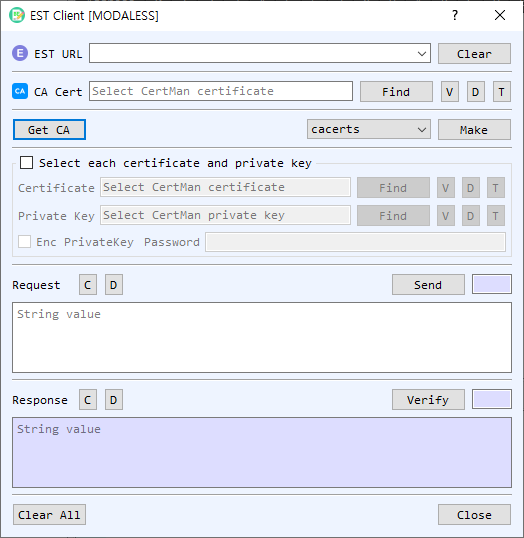
Figure 1. EST Client dialog with the cacerts operation selected. Choose a command, prepare or retrieve its request, send it, and inspect the response.
Screen Areas
- EST URL — Enter or select the EST server base URL. Clear clears the saved URL list/input.
- CA Cert — Select the CA certificate used for the EST exchange. Find, V, D, and T browse, view, decode, or identify the certificate.
- Get CA / Command / Make — Get CA requests CA certificates from the server. Select an EST command and choose Make to prepare a request.
- Select each certificate and private key — Enable this group to select client certificate/private-key files directly; otherwise use CertMan. Enable Enc PrivateKey and enter its password if the private key is encrypted.
- Request — Displays the prepared EST request. Send transmits it to the server. C clears and D decodes the request.
- Response / Verify — Displays the server response. Verify processes/verifies the response as supported by the selected command; C clears and D decodes it.
- Clear All / Close — Clear dialog data or close the client.
Commands
| Command | Purpose |
|---|---|
cacerts |
Retrieve the CA certificate collection using Get CA. |
simpleenroll |
Create a new key pair and CSR, then prepare a simple enrollment request. |
simplereenroll |
Use an existing certificate/key context and prepare a re-enrollment request with a new key/CSR. |
fullcmc |
Listed in the command selector; request generation is not implemented in this dialog. |
serverkeygen |
Listed in the command selector; request generation is not implemented in this dialog. |
csrattrs |
Listed in the command selector; request generation is not implemented in this dialog. |
Prepare and Send an Enrollment Request
- Enter the EST server URL and provide the CA certificate where needed.
- Select simpleenroll and choose Make. Generate a key pair and complete the CSR information when prompted.
- Select Send to submit the request. Review the response in the Response area.
- For simplereenroll, select the existing certificate/private key or choose them from CertMan before preparing the request. The client generates a new key and CSR based on the existing certificate identity.
- If issued material is returned, follow the prompt to save the private key and certificate to CertMan.
Notes
- The dialog implementation currently reports fullcmc, serverkeygen, and csrattrs request generation as unsupported.
- Keep the CA certificate and enrollment credentials consistent with the EST server configuration.
- Private keys are sensitive. If the selected private key is encrypted, enable Enc PrivateKey and provide its password.