License Information
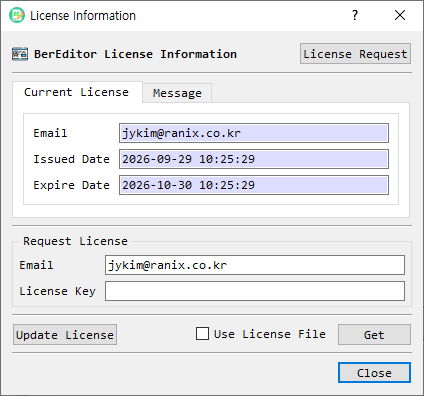
The License Information dialog displays BerEditor's current license status and provides controls to request, load, update, or remove license information.
Message tab
The Message tab reports whether BerEditor is licensed. In unlicensed mode, it may show a notice about an expired or missing license. Do stop showing this message for the time being suppresses the notice temporarily; clear it to resume the notices.
Current License tab
| Field or control | Description |
|---|---|
| Email associated with the current license. | |
| Issued Date | License issue date and time. |
| Expire Date | License expiration date and time. |
| License Request | Opens the license registration page in the system browser. |
| Email / License Key | Credentials used when retrieving a license. |
| Get | Retrieves and applies a license using the entered email and license key. |
| Use License File | Switches to selecting a local license file; the Get button changes to Find. |
| Free License | Requests a free license for the entered email address. |
| Update License | Updates the current license when the service is available. |
| Remove | Removes invalid saved license information after confirmation. |
| Close | Closes the dialog. |
The available buttons depend on the current license state. For example, Update License is shown for a valid licensed installation, while Free License is offered when no valid license is active.
Apply a license
- To request a license, select License Request and follow the registration page instructions.
- Return to BerEditor. Enter the email and license key, then select Get; or enable Use License File and select Find to load a license file.
- To request a free license, enter an email address and select Free License, then confirm.
- If the license changes successfully, accept the restart prompt to apply it.
Use Update License to renew an existing license when that action is available. Remove is intended for invalid saved license information. Close the dialog when finished.