Text View Dialog Guide
The Text View dialog presents decoded BER or KMIP TTLV data as an indented text listing, or shows its hexadecimal values. Open it from Tool > Text View.
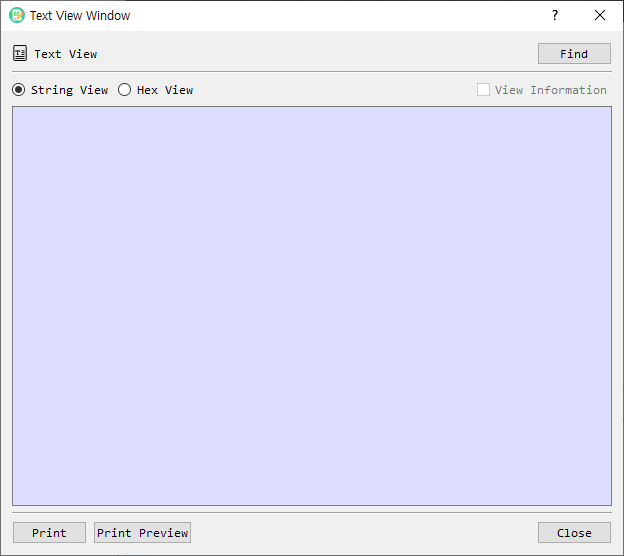
Figure 1. Text View dialog. String View is selected by default; choose Hex View to inspect encoded bytes.
Screen Areas
- Find — Loads a binary file to view. BerEditor parses it as BER or, when detected, KMIP TTLV.
- String View — Displays parsed fields and values in an indented text layout. This is the default view.
- Hex View — Displays parsed structures and their hexadecimal bytes.
- View Information — Adds an ASCII/printable-text column in Hex View. This option is available only in Hex View and is disabled for String View.
- Output area — Shows the listing. It is read-only and does not wrap long lines.
- Print / Print Preview — Prints the displayed listing or previews it before printing.
- Close — Closes the dialog.
View Data
- Open Text View from the selected data in BerEditor, or select Find to load a file.
- Choose String View or Hex View.
- In Hex View, optionally select View Information to show printable characters alongside hexadecimal bytes.
- Scroll through the parsed output. Use Print or Print Preview if needed.
The viewer detects KMIP TTLV data and displays its parsed structure. Otherwise, it parses the input as BER. You can also drag and drop a local file onto the dialog.
View Modes
- String View focuses on decoded values and structure. The information-column option is unavailable in this mode.
- Hex View shows bytes in groups of up to 16, with offsets and structural indentation. Enable View Information to include printable text beside the bytes.
- The view area is read-only; use the main BerEditor tools to edit or construct data.