OID Information Dialog Guide
The OID Information dialog looks up Object Identifier (OID) details from an OID or one of its supported representations. Open it from Tool > OID Information.
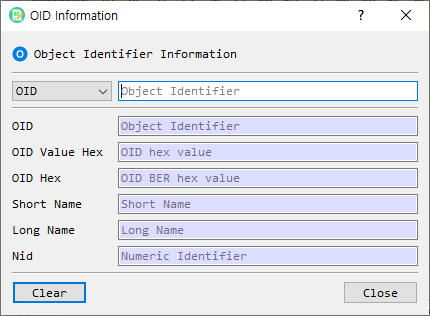
Figure 1. OID Information dialog. Choose an input representation and enter its value; the matching fields are populated as you type.
Screen Areas
- Input type — Select the representation of the value to search for.
- Input field — Enter the value. The placeholder text changes to indicate the expected input.
- OID — Displays the dotted-decimal object identifier.
- OID Value Hex — Displays the hexadecimal encoding of the OID value.
- OID Hex — Displays the BER-encoded OID in hexadecimal form.
- Short Name — Displays the OID's short name, when available.
- Long Name — Displays the OID's long name, when available.
- Nid — Displays the numeric identifier (NID), when available.
- Clear — Clears the displayed result fields.
- Close — Closes the dialog.
The lookup runs as you type or change the input type. The result fields are read-only.
Supported Input Types
| Input type | What to enter | Example format |
|---|---|---|
OID |
Dotted-decimal OID | 1.2.840.113549.1.1.1 |
OIDValueHex |
Hexadecimal OID value bytes | Hexadecimal characters, for example 2A864886F70D010101 |
OIDHex |
BER-encoded OID bytes in hexadecimal | Hexadecimal characters, for example 06092A864886F70D010101 |
ShortName |
OID short name | For example, rsaEncryption |
LongName |
OID long name | Enter the name used by the OID database. |
Nid |
Numeric identifier | A numeric NID value. |
Look Up an OID
- Choose the appropriate input type from the selector.
- Enter or paste the corresponding value in the input field.
- Read the resolved OID and any available associated values below.
- Select Clear to clear the result fields before another lookup, or replace the input to search again.
If a name or NID is not known to the OID database, some result fields may remain blank. The dialog does not provide a separate Search button; lookup is triggered by changes to the input.
Notes
OIDValueHexandOIDHexare different:OIDHexincludes the BER tag and length bytes, whileOIDValueHexcontains the OID value bytes.- Short name, long name, and NID are shown only when the underlying OID database has corresponding entries.
- The dialog also contains a Create action in the UI definition, but it is hidden by the current application implementation; it is therefore not part of the visible workflow shown above.