BerEditor Main Window UI Guide
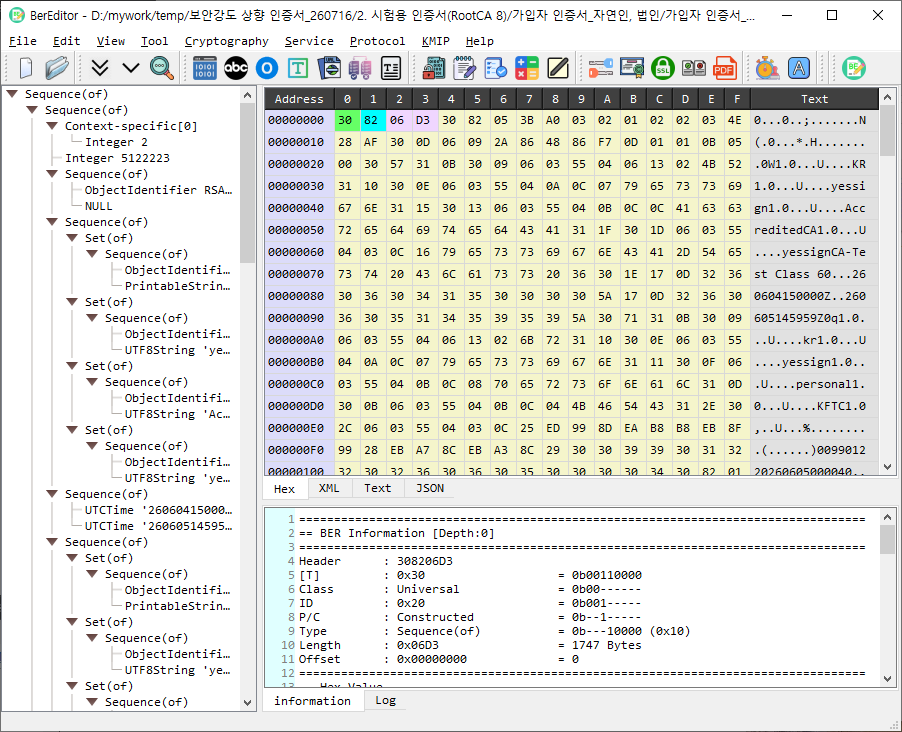
Figure 1. The supplied image currently shows the Data Converter dialog. The main-window layout described below is based on the application source code.
Main Window Layout
The main window is divided into a left BER tree pane and a right workspace. The right workspace has an upper data viewer and a lower information/log panel. Splitters let the user adjust the pane sizes.
| Area | Description |
|---|---|
| Menu bar | Provides File, Edit, Tool, Cryptography, Service, Protocol, KMIP, Help, and View commands. |
| Toolbars | Optional toolbars provide shortcuts to commands from the menus. Which toolbars and buttons appear can be configured in View. |
| BER tree (left) | Displays the decoded BER structure as a navigable tree. Select a node to inspect its data and details. |
| Data viewer (upper right) | Shows the selected data in Hex, XML, Text, or JSON tabs. The Hex view is displayed as a table with an address, byte columns, and printable text. |
| Information (lower right) | Shows details about the currently selected node or data. |
| Log (lower right) | Shows application messages and operation output. |
| Status bar | Displays status information when an operation provides it. |
Some data-view tabs and the Log tab may be unavailable depending on license status. The exact presentation can also vary by platform and window size.
Menus
| Menu | Main purpose |
|---|---|
| File | Create a new window; open BER, certificate, CRL, CSR, key, or CMS data; save; view recent files; print; and quit. |
| Edit | Copy selected information as-is, Hex, or Base64; expand or collapse tree nodes; navigate between nodes; and find a node. |
| Tool | Decode BER; convert data or numbers; inspect OIDs; create or check BER; retrieve BER from a URI; compare BER; and open binary/text views. |
| Cryptography | Manage keys and perform hash, MAC, encryption, signature, key agreement, PKCS#7, secret sharing, certificate path validation, OTP, VID, and big-number operations. |
| Service | Manage key pairs, certificates, and keys; check SSL/TLS; compare X.509 certificates; sign documents; and access CAVP tools. PDF signing appears when enabled in the build. |
| Protocol | Open clients for OCSP, TSP, CMP, SCEP, ACME, and EST. |
| KMIP | Decode, create, encode, or send KMIP TTLV messages. |
| Help | Configure settings; clear or pause logging; open PKI content, license information, support links, and About information. |
| View | Configure which toolbar actions are shown and restore the default view configuration. |
For the full command list and shortcuts, see Menu Guide.
Typical Workflow
- Use File > Open... to open a BER file, or choose the appropriate specialized open command for a certificate, CRL, CSR, key, or CMS file.
- Select a node in the BER tree on the left.
- Inspect the selected data in the Hex, XML, Text, or JSON viewer tabs on the right.
- Read node details in Information and operation messages in Log.
- Use File > Save or File > Save As... when you need to save the current BER data.
Resizing and View Options
- Drag the divider between the tree and right workspace to change their relative widths.
- Drag the divider between the upper data viewer and lower Information/Log panel to change their heights.
- Use the View menu to show or hide toolbar actions and Set Default to restore the configured default view.
- If an expected action or data tab is unavailable, check the license status and the current View configuration.