KeyPairMan Dialog Guide
The Key Pair Management dialog stores, selects, inspects, and uses asymmetric key pairs in BerEditor's KeyPairMan. A key pair is shown with its algorithm, parameter set, and modification time.
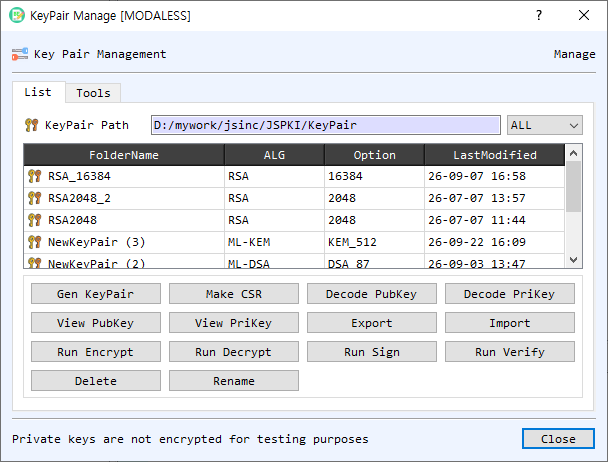
Figure 1. KeyPairMan on the List tab. Select a key-pair row to perform an action on that key.
Screen Areas
- List / Tools tabs — List manages stored key pairs. Tools works with private keys, public keys, encrypted private keys, private-key information, and certificate signing requests (CSRs).
- KeyPair Path — Shows the configured KeyPairMan storage folder. The adjacent filter limits listed key pairs by algorithm or shows All.
- Key-pair table — Lists stored pairs by folder name, algorithm, option/parameter, and last-modified time. Select a row before using the action buttons.
- Gen KeyPair / Import — Generate a new pair or import key material into KeyPairMan.
- View PubKey / View PriKey — Inspect the selected pair's public or private key. Private key material is sensitive.
- Decode PubKey / Decode PriKey — Decode the selected key in BerEditor's main window.
- Run Encrypt / Run Decrypt / Run Sign / Run Verify — Open the corresponding operation using the selected key material.
- Make CSR — Create a certificate signing request using the selected key pair.
- Export / Delete / Rename — Export the selected pair, remove it from KeyPairMan, or change its name.
- Tools tab controls — Load private/public key files, inspect or decode them, check that a pair matches, create a CSR, save a pair to the list, and encrypt/decrypt a private key. The private-key encryption mode and password are set in this tab.
- Save as DER — Select DER output for supported export/save operations in the Tools tab.
- OK / Close — OK confirms selection when the dialog is being used to choose a key pair. Close dismisses the manager.
Manage Key Pairs
- Open the List tab and select a row, or choose Gen KeyPair or Import to add key material.
- Use View, Decode, or Make CSR to inspect or prepare the selected pair.
- Use the Run buttons to launch encryption, decryption, signing, or verification with the selected key.
- Use Export, Rename, or Delete as needed. Deleting removes the stored key-pair entry from KeyPairMan.
Use the Tools Tab
- Open Tools and use Find beside the private-key or public-key field to select files. The V, D, and T controls view, decode, or identify key data where available.
- Select Check KeyPair to confirm the public and private keys correspond.
- Select Make CSR to create a request from the key pair, then inspect or decode the CSR as needed.
- Select Save to List to add the pair to KeyPairMan.
- To protect or unlock a private key, provide an encrypted private-key file or key, choose an encryption mode and password, then use Encrypt PrivateKey or Decrypt PrivateKey.
Tools tab layout
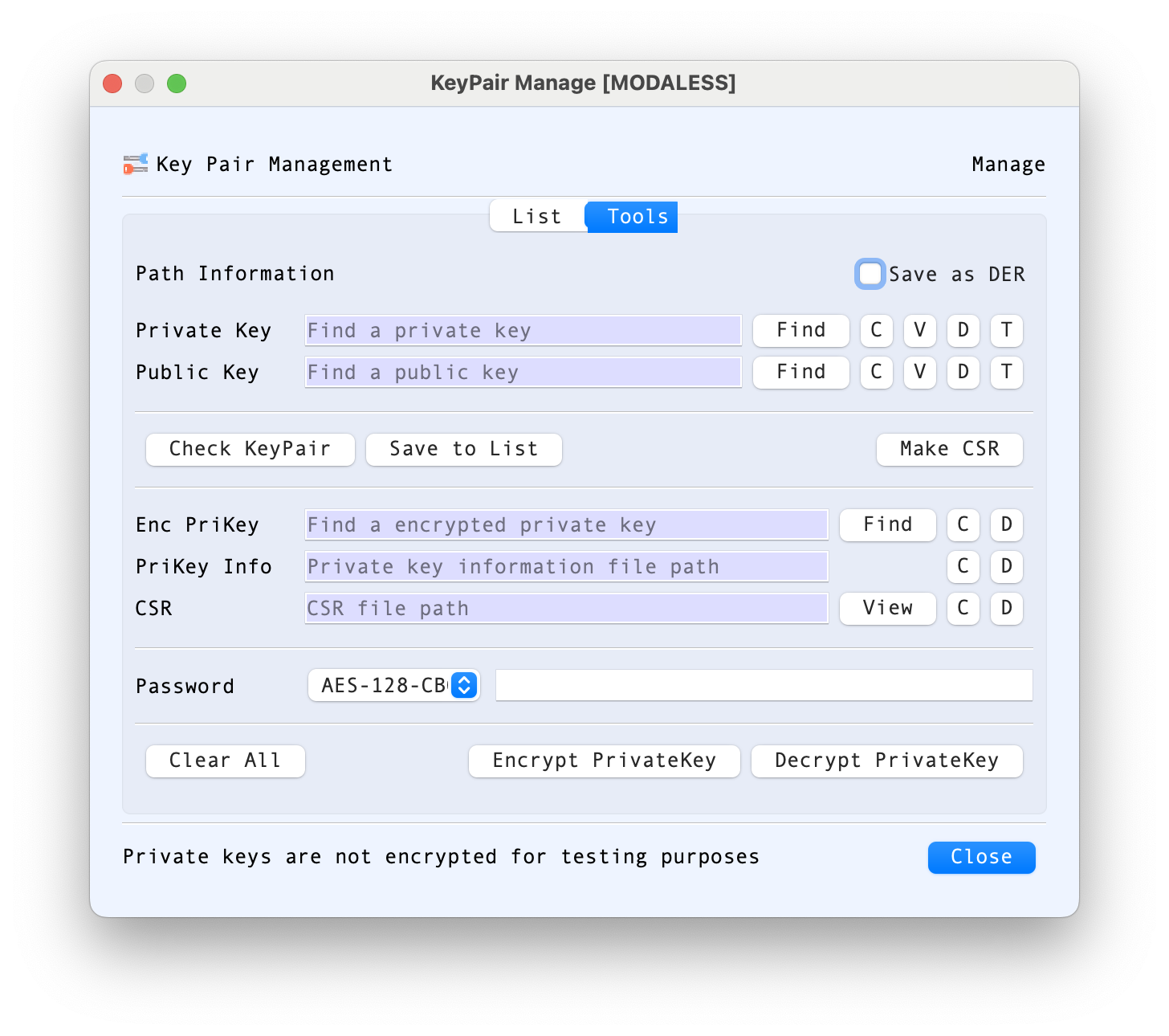
Figure 2. The Tools tab groups key-pair operations, CSR handling, and private-key encryption in one workspace.
The Private Key and Public Key rows each have a Find button and compact controls: C clears the selected path, V opens a view of the key, D decodes its contents in BerEditor, and T identifies the key type. Use Check KeyPair after selecting both inputs to check that the public and private components correspond. Save to List stores the pair in KeyPairMan, while Make CSR creates a certificate signing request from the private key.
The lower fields support related files and operations:
- Enc PriKey accepts an encrypted private-key file. Use Find to select it, C to clear the path, and D to decode it.
- PriKey Info is for private-key information data; its C and D controls clear or decode the specified file.
- CSR displays the CSR path. View opens it for inspection, while C and D clear or decode it.
- Password is used with the selected encryption mode for private-key encryption or decryption. Encrypt PrivateKey writes an encrypted key, and Decrypt PrivateKey processes an encrypted key using the supplied password.
- Save as DER selects DER output for supported save/export operations. Leave it unchecked for the other supported output format.
- Clear All clears the Tools tab inputs so you can start another operation.
The warning at the bottom of the dialog states that private keys stored in KeyPairMan are not encrypted for testing purposes. The password and encryption controls here apply to file-based operations; they do not change that storage behavior. Restrict access to the key-pair directory and use the encryption controls when you need to protect private-key files.
Notes
- The dialog displays a notice that private keys in KeyPairMan are not encrypted for testing purposes. Protect the storage directory and exported key files accordingly.
- Run operations require a compatible key type and the appropriate public or private key component.
- KeyPairMan paths are configured in BerEditor settings; the path shown in the dialog identifies the active store.