CertMan Linux Installation and Startup Guide
This guide explains how to extract the Linux ZIP package and start CertMan with the included CertMan.sh script.
Version note: The filename
CertManV234.zipand screenshots below are from CertMan 2.3.4. Package filenames, folder contents, startup steps, and screens may differ between releases. Check the download and update history for the version you are using.
1. Download the ZIP package
Download CertMan for Linux 64-bit
Open a terminal in the directory where the package was downloaded. The commands below assume the ZIP file is in the current directory.
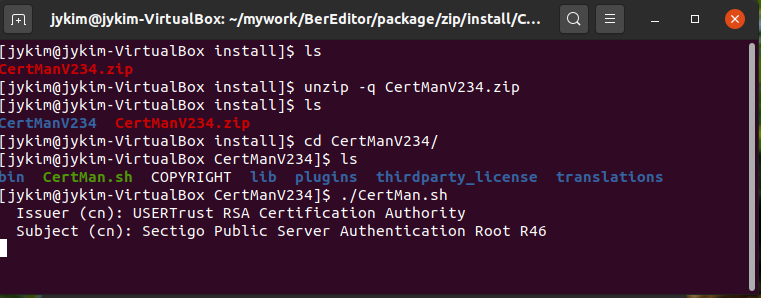
2. Extract the package
Run the following commands to extract the ZIP file and enter the extracted directory:
unzip -q CertManV234.zip
cd CertManV234
The extracted folder contains items such as bin, lib, plugins, translations, and thirdparty_license, as well as the CertMan.sh startup script. Use ls to confirm that the files were extracted.
3. Start CertMan
From the extracted CertMan directory, run:
./CertMan.sh
The script may prompt for Issuer (cn) and Subject (cn) values in the terminal. Enter the issuer and subject Common Names (CN) for the certificate. The values shown in the screenshot are examples:
Issuer (cn): USERTrust RSA Certification Authority
Subject (cn): Sectigo Public Server Authentication Root R46
The prompts and behavior may vary by release and configuration. If the script does not start, first confirm that you are in the extracted CertMan directory and that CertMan.sh is present.
4. Prepare a database
When CertMan opens, select File > New to create a database or File > Open to open an existing one. Choose a storage location and password, and keep the password and database backup safe. For key-pair, CSR, and certificate workflows, see the CertMan Basic Usage Guide.