License Information Manual
The License Information dialog displays the current CertMan license and provides controls to request, load, update, or remove license information.
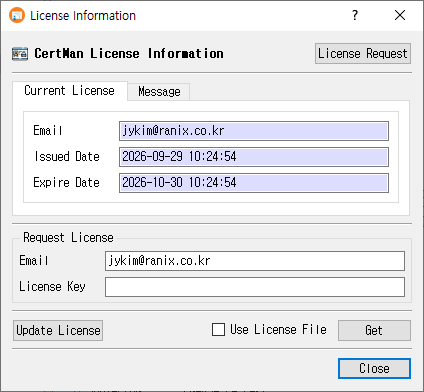
Open the dialog
Choose License Information from the main window.
Review license details
On the Current License tab, review the license Email, Issued Date, and Expire Date. The Message tab displays the license-related notice. Select Do stop showing this message for the time being to suppress that notice temporarily.
Load or request a license
- In Request License, enter the account Email and License Key.
- Click Get to retrieve and validate the license. If you already have a license file, check Use License File; the button changes to Find, which opens a file picker.
- To request a license, click License Request to open the license registration page in a browser. For a free license, enter an email address and click Free License, then confirm the request.
- After a successful license change, the dialog offers to restart the application so the change can take effect.
License files are validated before being applied. The online retrieval or free-license request requires the corresponding license service to be supported by the application build.
Update or remove license information
- Click Update License to renew the current license, when one is installed. The application reports an error if no license is present or the update cannot be completed.
- Click Remove to remove invalid saved license information after confirming the prompt.
- Click Close to close the dialog.