Set Password Dialog Guide
This guide describes the SetPassDlg password prompt used when creating a new CertMan database. It is not the dialog opened by Data > Set Passwd: that menu action opens the private-key encryption progress window.
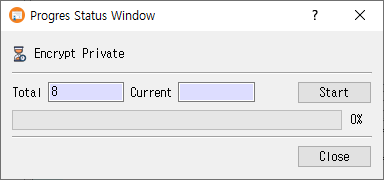
Image note: The supplied
set_pass_dlg.pngshows a Progress Status Window with Encrypt Private, which does not match theSetPassDlglayout insrc/CertMan/set_pass_dlg.ui. The guide below documents the source dialog; the image is included as provided and should be replaced with a screenshot of the password prompt when one is available.
When this dialog appears
The main-window File > New command (Ctrl+N) opens this dialog with the heading Set private key password before prompting for a new database location. The dialog collects the password preference; when the database is created, CertMan saves the password verifier and enables private-key encryption only if the application is licensed and Use password is selected.
Set a password
- Leave Use password selected to encrypt internal private keys saved in the new database.
- Enter a value in Password and enter it again in Password Confirm.
- Click OK to accept. The values must match.
- To create the database without this private-key password protection, clear Use password and click OK. The warning text changes to indicate the unsafe setting.
- Click Cancel to cancel the database creation flow.
When Use password is cleared, the password fields are disabled and no password is required. The main window does not store the password configuration in an unlicensed database.
Fields and controls
| Field or control | Purpose |
|---|---|
| Heading | Set by the calling workflow; for new database creation it reads Set private key password. |
| Use password | Enable or disable password protection. Checked by default. Some callers can require it and hide the checkbox. |
| Description | Explains that the password encrypts private keys, or warns that the setting is unsafe when password use is disabled. |
| Password | New password. Input is masked. |
| Password Confirm | Re-enter the password. Input is masked and must match. |
| OK | Accept the choice after validation. |
| Cancel | Reject the dialog and return to the caller. |
The dialog rejects an empty password, an empty confirmation, or a mismatch when Use password is checked. It does not itself encrypt keys; the caller saves the password verifier and subsequent key operations use the configured password.
Important distinction
The separate Data > Set Passwd (Ctrl+Alt+P) action requires an open, licensed database with unencrypted private keys. It starts a progress operation to encrypt internal private keys; it does not open SetPassDlg. Data > Change Passwd similarly uses a progress operation when keys are already encrypted.
Related implementation
This guide is based on images/set_pass_dlg.png, src/CertMan/set_pass_dlg.ui, src/CertMan/set_pass_dlg.h, src/CertMan/set_pass_dlg.cpp, and the File > New call site in src/CertMan/mainwindow.cpp.