User Dialog Guide
This guide explains CertMan's Register a user dialog. Open it from Tools > Register User. A database connection is required. The same dialog can also be opened for an existing user to modify that record.
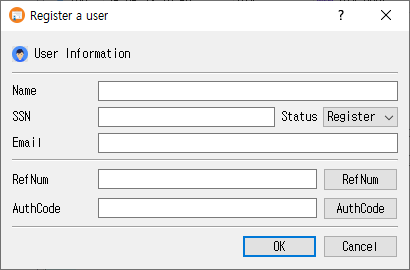
Register or update a user in CertMan
- Enter the user's Name, SSN, and Email. These three fields are required.
- Choose a Status. New dialogs default to Register.
- Optionally enter a RefNum and AuthCode, or use the buttons beside those fields to generate values.
- Click OK to save the record to the currently connected database. Click Cancel to close without saving.
After saving, CertMan refreshes the User list. If the dialog was opened for an existing user, it updates that record; otherwise, it adds a new user record.
Fields and controls
| Field or control | Purpose |
|---|---|
| Name | Required user name. |
| SSN | Required SSN value used by the application as the user's identifier. |
| Required email address. | |
| Status | User status. The available values are Invalid, Register, Issue, and Stop. New records default to Register. |
| RefNum | Optional reference number. Click the RefNum button to fill the next sequence number based on the latest user record in the database. |
| AuthCode | Optional authorization code. Click AuthCode to generate a random code and populate the field. |
| RegServer | In Pro, submit the user's name, SSN, and email to the configured registration server. |
| OK | Save the user record to the local CertMan database, or update the loaded record. |
| Cancel | Close without saving changes to the local database. |
Register with the registration server
The RegServer button is available in Pro. It sends the current Name, SSN, and Email to the configured REG server after signing in. A successful response displays a confirmation and refreshes the User list. This is a separate action from clicking OK, which saves the local database record. REG server settings and a successful login are required.
Editing an existing user
When opened for an existing record, the dialog title changes to Modify a user and the stored name, SSN, email, authorization code, and reference number are loaded. Change the desired values and click OK to update the record. The status selector is initialized to Register when the dialog is shown; review it before saving an edit.
Notes
- The dialog validates that Name, SSN, and Email are not empty. It does not perform additional format validation in this form.
- The RefNum and AuthCode fields are optional for local saving.
- The RegServer button is hidden outside the Pro edition.
Related implementation
This guide is based on images/user_dlg.png, src/CertMan/user_dlg.ui, src/CertMan/user_dlg.h, src/CertMan/user_dlg.cpp, and the Register User action in src/CertMan/mainwindow.cpp.